Redeem Your Credit Codes &Start Staging Instantly
A simple guide to activating your promotional codes and unlocking credits for stunning AI-generated property staging
Step-by-Step Guide
Navigate to Billing Settings
Go to your organization's settings and click on the Billing tab. You'll find an overview of your current credits and subscription.
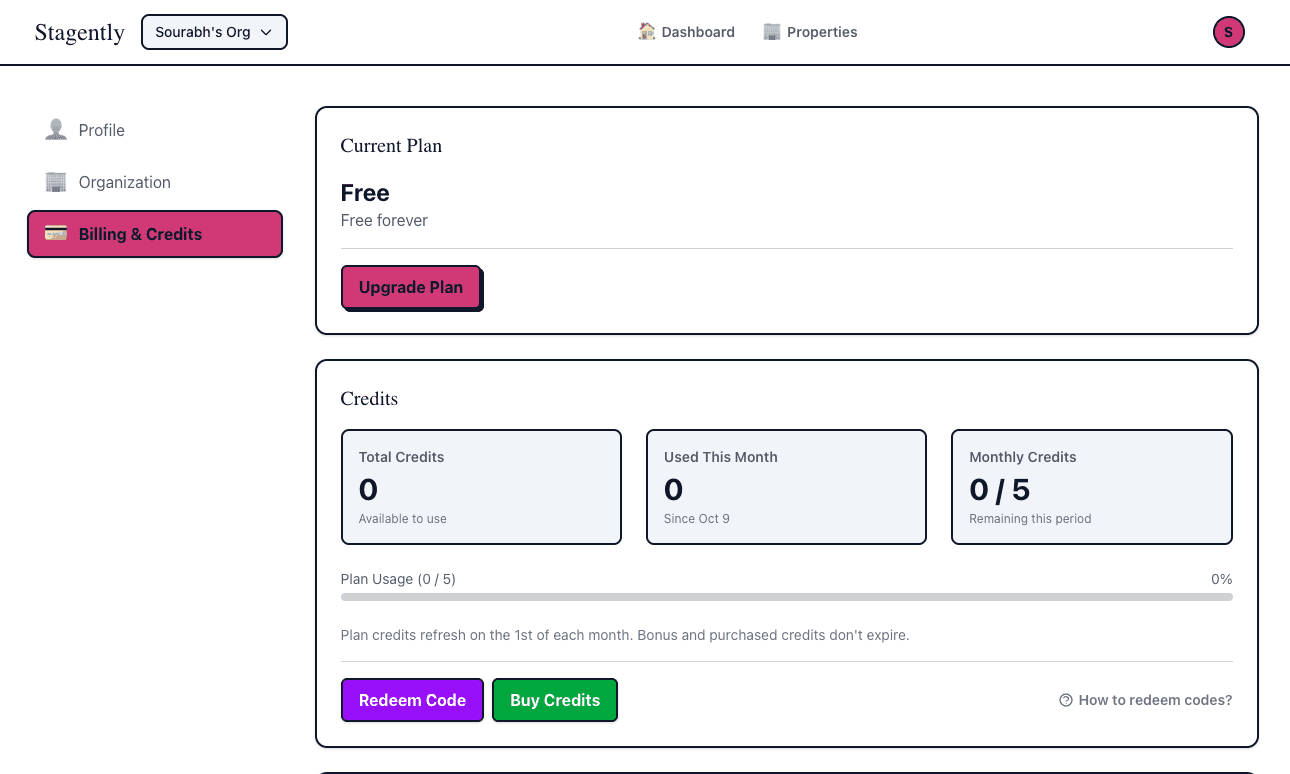
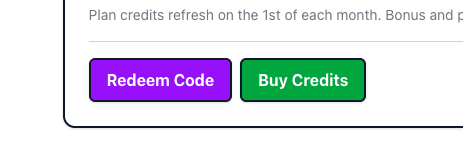
Click "Redeem Code" Button
In the Credits section, look for the "Redeem Code" button and click it to open the redemption modal.
Enter Your Credit Code
Type or paste your credit code into the input field. Codes are automatically converted to uppercase, so don't worry about capitalization!
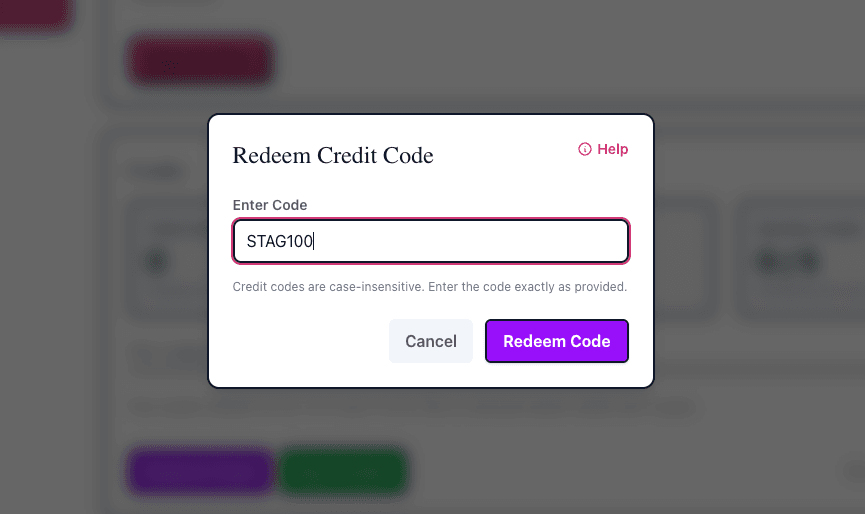
Confirm and Redeem
Click the "Redeem Code" button to complete the process. You'll see a success message with the number of credits added to your account!
Successfully redeemed 100 credits!
Frequently Asked Questions
Where do I get credit codes?
Credit codes are typically distributed through promotional campaigns, partnerships, events, or as part of special offers. Check your email for codes sent by our team, or contact support if you believe you should have received one.
Are credit codes case-sensitive?
No! Credit codes are automatically converted to uppercase when you enter them, so you don't need to worry about capitalization. ABC123 and abc123 are treated identically.
Can I use multiple credit codes?
Yes! You can redeem as many valid credit codes as you have. Each code can only be redeemed once per organization, but there's no limit to how many different codes you can use. Your credits will accumulate in your account.
What happens after I redeem a code?
The credits are immediately added to your organization's purchased credits balance. These credits don't expire and can be used anytime. You'll also see a transaction record in your billing history showing the redemption.
Do credit codes expire?
Some credit codes have expiration dates, while others don't. If a code has expired, you'll see an error message when trying to redeem it. Make sure to use promotional codes before their expiration date!
Do redeemed credits expire?
No! Credits redeemed from codes are added to your "purchased credits" balance, which never expires. They're different from monthly subscription credits, which refresh each billing period.
Troubleshooting Common Issues
"Invalid credit code"
What it means: The code you entered doesn't exist in our system.
How to fix: Double-check the code for typos. Make sure you're copying the entire code without extra spaces. If the problem persists, contact the source that provided the code.
"This code has expired"
What it means: The promotional period for this code has ended.
How to fix: Unfortunately, expired codes cannot be redeemed. Check for newer promotional codes or consider purchasing credits directly.
"This code has reached its maximum uses"
What it means: This code has been redeemed the maximum number of times allowed across all users.
How to fix: The code is no longer available for redemption. Look for alternative promotional codes or purchase credits.
"This code has already been redeemed by your organization"
What it means: Someone in your organization has already used this code.
How to fix: Check your billing transaction history to see when this code was redeemed. The credits should already be in your account. Each code can only be used once per organization.
Still Need Help?
If you're experiencing issues not covered here or need additional assistance with credit code redemption, our support team is here to help.
Contact Support